Complete guide
Introduction
What is the Workbook Generator
The Workbook Generator transforms SAP SuccessFactors XML and .zip files into complete Excel workbooks in seconds. It was built to solve a real pain: SAP consultants lose days on every project manually assembling configuration spreadsheets — opening XMLs, copying XPaths, formatting column by column, reviewing bilingual labels, repeating per country, generating TOC, summary, navigation.
This work eats time that should be going into system configuration, process improvement, and client relationship — the consultant's real role. Manipulating Excel doesn't add value to the client; business understanding and solution design do.
The tool automates 100% of the generation. What used to take days now takes seconds. The time you get back goes where it belongs.
Built by
Built by André Dezan — consultant with 8+ years of experience in SAP SuccessFactors for Human Resources and innovation enthusiast. Tired of watching consultants (himself included) lose days on manual workbook creation on every go-live, he decided to build the tool he wished he'd had for the last 8 years.
To exchange ideas, report bugs, or suggest features: connect on LinkedIn.
Who it's for
- SAP SuccessFactors consultants on implementation or sustainment projects
- Consulting Companies that want to optimize deliveries without compromising documentation quality
- Internal HR/IT teams that need a faithful snapshot of the as-is configuration (audit, handover, upgrade impact)
- The SAP SF community in general
Privacy and how your data is handled
- No signup — no email, phone, login, or account. Open the site and use it.
- 100% free — no trial, no limit, no paid upgrade.
- Stateless generation — the files you upload (XML, ZIP) are processed in memory and discarded immediately. The file contents are never written to a database, log, or disk, and never shared with third parties.
- The
.xlsxonly exists on your machine — the server streams the file straight to your browser. Nothing you upload or generate is stored anywhere. - Built for the SAP SF community.
Which workbook to use when
This guide documents the 3 workbooks generated by the tool. Use the table below to pick the right one for your case.
| You need to document… | Use the workbook | Inputs |
|---|---|---|
Employee data (jobInfo, personalInfo, addressInfo, compInfo, etc.) |
Succession Data Model | SDM XML + CSF XML (optional) |
| Organizational structure (Location, Legal Entity, Business Unit, Cost Center, Pay Grade, etc.) | Corporate Workbook | CDM XML + CSF XML (optional) + MDF ZIP (optional) |
| Just the Position object (fields, rules, Position Management Settings) | Position Management | MDF ZIP |
Documenting an entire tenant? Generate all 3 — they complement each other. Total time: ~10-15 minutes.
Succession Data Model Workbook
Overview
Generates a multi-sheet Excel from the <succession-data-model> (SDM)
XML and, optionally, the <country-specific-fields> (CSF) XML. The
output documents every Employee Central data object
(personalInfo, jobInfo, compInfo,
addressInfo, emailInfo, phoneInfo,
nationalIdCard, etc.) with its fields, bilingual labels, picklists and
rules — plus per-country variants (Brazil, Portugal, etc.) when CSF is uploaded.
Use when you need to:
- Document the as-is Employee Central configuration for handover or audit
- Compare per-country customized fields (e.g. NationalId BRA vs PRT)
- Onboard a consultant onto a new project without granting tenant access
- Build a baseline for before/after comparison around a release or upgrade
Difference vs Corporate Workbook: this one is all about the employee (personal data, job info, compensation). If you need to document the organizational structure (Location, Legal Entity, Cost Center, etc.), use the Corporate tab.
Pre-requisites
On the customer's tenant:
- Employee Central activated
- Succession Data Model configured (default on any EC tenant)
- (Optional) Country/Region Succession Data Model — only if the customer operates in multiple countries
SAP permissions (yours or whoever runs the export):
- Admin Center access
- Export Succession Data Model permission (mandatory)
- Country/Region Succession Data Model permission (only if you'll use CSF)
On your machine:
- Modern browser (Chrome, Edge, Safari, Firefox)
What you do NOT need: a login on the tool (public access), a VPN to the customer's tenant, or a maintenance window. CSF is optional — without it you'll get the workbook with only the base data objects.
Step-by-step
Part 1 — Export the SDM XML (mandatory)
- Log into the customer tenant's Admin Center.
- Go to Admin Center → Export Succession Data Model.
- Click Export Succession Data Model — the
.xmldownload starts automatically.
Part 2 — Export the CSF XML (optional)
Skip this part if the customer doesn't operate in multiple countries.
- Go to Admin Center → Import/Export Country/Region Succession Data Model.
- Click Country/Region Succession Data Model — the
.xmldownload starts automatically.
Part 3 — Workbook generation
- Open /workbook/.
- The Succession Data Model tab is active by default.
- Under SDM XML File, click Choose file and pick the SDM
.xml. - (Optional) Under CSF XML File, upload the CSF
.xml. - Click Generate Configuration Workbook.
- The
.xlsxis streamed back to your browser (EC_Employee_Data_Workbook_<date>.xlsx).
Total time: 1-3 minutes. Without CSF, around 1 minute.
Common confusion: SDM (Part 1) and CSF (Part 2) are different exports from the same menu. If you upload one in the wrong field the validator flags it immediately — but checking the filename first saves a round-trip.
What you'll get
The delivered file (EC_Employee_Data_Workbook_<date>.xlsx) contains:
1. Cover — Title page identifying the workbook.
2. TOC (Table of Contents) — Clickable links to each sheet — useful because the file usually has 20+ tabs.
3. Base entity sheets — One sheet per hris-element in the SDM (~15-25 sheets on standard tenants). The most common ones:
personalInfo · jobInfo · compInfo · paycompRecurring · paycompNonRecurring · addressInfo · emailInfo · phoneInfo · nationalIdCard · employmentInfo · jobRelationsInfo · …
Each sheet lists the entity's fields with 11 columns:
System Field Id · SF Label · Type · Max Length · Required · Customer Label · Mandatory · Picklist · Decimal Precision · Masking · Comments
4. Country-variant sheets (when CSF is uploaded) — For each entity with per-country variants in the CSF, a consolidated sheet (e.g. CSF Job Info, CSF National ID, CSF Global Info, CSF Home Address) with a Country column listing the ISO 3166-1 code (e.g. "Brazil (BRA)", "Portugal (PRT)") followed by the country-specific extra fields.
5. Sync Mappings — Sheet listing the inter-entity relationships defined in the SDM via <hris-sync-mappings> (e.g. how personalInfo syncs to User).
Tip: open the TOC first — it's the full index. Each entity name there is a clickable link that jumps straight to the matching sheet.
Troubleshooting
Cause: You uploaded the CDM in the SDM field.
Fix: Switch to the Corporate Data Model tab at the top — that XML belongs there.
Cause: You swapped the fields — uploaded the CSF where the SDM goes.
Fix: Move the CSF to the CSF XML File (optional) field and upload the SDM in the main one.
This file is not a valid XML
Cause: Corrupted download, file renamed from another format, or a .txt saved as .xml.
Fix: Re-download straight from Admin Center — don't edit or rename before uploading.
Cause: That entity isn't configured in the tenant's SDM — it may have been removed via removed="true" or never enabled.
Fix: Check in Provisioning → Succession Data Model whether the entity exists. If it's not there, it won't show up here either.
Cause: That country has no variants for the entity you expected, or the CSF doesn't include that country × entity combination.
Fix: Open the CSF XML in a text editor and search for <country id="BRA"> (or the ISO you need). If it's not there, the tenant has no CSF for that country.
Hit an error not listed here? Send me a message on
LinkedIn
with a screenshot of the error + the name of the .xml you tried to upload (don't attach the contents).
Corporate Workbook
Overview
Generates a multi-sheet Excel from the <corporate-data-model> (CDM)
XML and, optionally, the <country-specific-fields> (CSF) XML and
the MDF Object Definitions ZIP. The output documents the full Employee
Central organizational structure: classic Foundation Objects (Location,
Geozone, Corporate Address, Pay Grade, Frequency, Event Reason, etc.)
plus MDF Generic Objects (Legal Entity, Business Unit, Division,
Department, Cost Center, Job Function, Job Classification, Pay Group, etc.) — all
merged into a single alphabetical TOC.
Use when you need to:
- Document the as-is organizational structure for handover or audit
- Compare Foundation Objects across customers (same model, different configurations)
- Onboard a consultant onto a new project without granting tenant access
- Map inter-object dependencies (Associations) before a migration or redesign
Difference vs the other workbooks: this documents the organizational structure (where the company operates, how it's split). For employee data use Succession; for the Position object specifically use Position Management. The 3 inputs (CDM + optional CSF + optional MDF) cover both the classic model and the modern MDF — almost every tenant needs both XMLs and the ZIP.
Pre-requisites
On the customer's tenant:
- Employee Central activated
- Foundation Objects configured (default on any EC tenant)
- (Optional) CSF for
corporateAddress— only if the customer operates in multiple countries - (Optional) MDF Generic Objects (Legal Entity, Business Unit, etc.) — almost every modern tenant has these
SAP permissions (yours or whoever runs the export):
- Admin Center access
- Import/Export Corporate Data Model permission (mandatory)
- Country/Region-Specific XML for Corporate Data Model permission (only if you'll use CSF)
- Import/Export Generic Object permission on
Object Definition(only if you'll use the MDF ZIP)
On your machine:
- Modern browser (Chrome, Edge, Safari, Firefox)
What you do NOT need: a login on the tool (public access), a VPN to the customer's tenant, or a maintenance window. CSF and MDF ZIP are optional — without them you'll still get the workbook with only the CDM's classic Foundation Objects.
Step-by-step
Part 1 — Export the CDM XML (mandatory)
- Log into the customer tenant's Admin Center.
- Go to Admin Center → Import/Export Corporate Data Model.
- Under Select the action you want to perform, pick Export.
- Click Export File — the
.xmldownload starts.
Part 2 — Export the CSF XML (optional)
Skip this part if the customer has no country-specific variants for corporateAddress.
- Go to Admin Center → Import/Export Country/Region-Specific XML for Corporate Data Model.
- Under Select the action you want to perform, pick Export.
- Click Export File — the
.xmldownload starts.
Part 3 — Export the MDF ZIP (optional but recommended)
Without this part you won't have Legal Entity, Business Unit, Division, Department, Cost Center, etc.
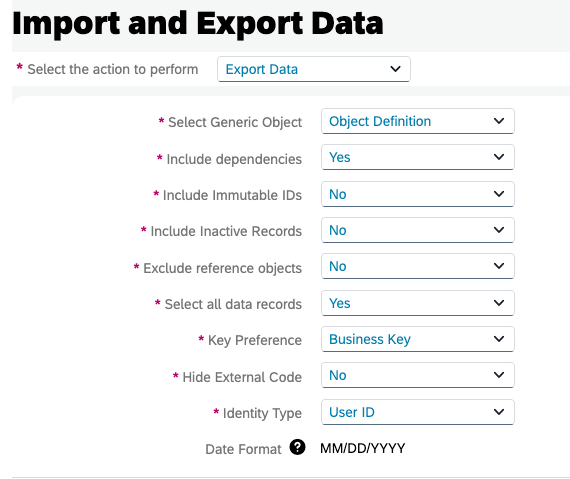
- Go to Admin Center → Import and Export Data.
- Under Select Generic Object, pick Object Definition.
- Click Export.
- Wait for the status to flip to Completed → View Result → Download and save the
.zip.
Part 4 — Workbook generation
- Open /workbook/.
- Click the Corporate Data Model tab.
- Under CDM XML File, upload the CDM
.xml. - (Optional) Under CSF XML File, upload the CSF
.xml. - (Optional) Under MDF ZIP File, upload the MDF
.zip. - Click Generate Corporate Workbook.
- The
.xlsxis streamed back to your browser (EC_Foundation_Workbook_<date>.xlsx).
Total time: 4-8 minutes. Most of it is the SAP MDF ZIP export (a few minutes depending on tenant size).
Common confusion: if an entity is missing from the generated workbook (e.g. Cost Center, Legal Entity), you likely forgot the MDF ZIP — those modern objects live there, not in the CDM.
What you'll get
The delivered file (EC_Foundation_Workbook_<date>.xlsx) contains ~33 sheets in alphabetical order when all 3 inputs are provided.
1. Cover — Title page identifying the workbook.
2. TOC (Table of Contents) — Clickable links to each of the ~33 sheets.
3. Classic Foundation Object sheets (~10, from the CDM XML) — most common:
Corporate Address · Event Reason · Frequency · Geozone · Location · Location Group · Pay Component · Pay Component Group · Pay Grade · Pay Range · …
4. MDF Generic Object sheets (~14, when the ZIP is uploaded):
Business Unit · Cost Center · Currency Exchange Rate · Department · Division · Job Classification · Job Function · Legal Entity · Pay Calendar · Pay Group · Pay Scale Area · Pay Scale Group · Pay Scale Level · Pay Scale Type
5. CSF Corporate Address (when CSF is uploaded) — A single consolidated sheet with a Country column (e.g. "Brazil (BRA)", "Portugal (PRT)") followed by the country-specific extra fields. Replaces the old one-sheet-per-country layout.
6. Every entity sheet has:
- 11 column fields at the top:
System Field Id·SF Label·Type·Max Length·Required·Customer Label·Mandatory·Picklist·Decimal Precision·Masking·Comments - Sub-tables below the fields, depending on the type:
| Sub-table | What it documents |
|---|---|
Associations | Relations to other objects (FO + MDF) |
Searchable Fields | Indexed fields for text search (FO + MDF) |
Business Keys | Business-key fields (MDF only) |
Security | Object RBP configuration (MDF only) |
Rules | Event-bound rules (onSave, onInit, etc. — MDF only) |
Field Criteria | Per-field filters (MDF only) |
Field-Level Rules | Per-field rules (MDF only) |
Object Configuration | Technical properties (MDF only) |
Tip: open the TOC first — it's the full index. The alphabetical order makes it easy to spot FO and MDF side-by-side (e.g. "Cost Center" from MDF lands right after "Corporate Address" from FO).
Troubleshooting
Cause: You uploaded the SDM in the CDM field.
Fix: Switch to the Succession Data Model tab at the top.
Cause: You swapped the fields.
Fix: Move the CSF to the CSF XML File (optional) field and upload the CDM in the main one.
This file is not a valid XML or This file is not a valid ZIP archive
Cause: Corrupted download or file was renamed.
Fix: Re-download straight from Admin Center — don't edit or rename before uploading.
The ZIP does not contain "Object Definition.csv"
Cause: You exported a different Generic Object.
Fix: Re-export from Admin Center with Select Generic Object = Object Definition.
Cause: The Foundation Object you expected is actually an MDF Generic Object — and you didn't upload the ZIP. Or the entity was removed in the CDM via removed="true".
Fix: If the entity is MDF (Legal Entity, Business Unit, Division, Cost Center, Job Classification, etc.), go back to the Step-by-step and do Part 3 (MDF ZIP export). If it's a classic FO, confirm in Provisioning that it's enabled.
Hit an error not listed here? Send me a message on LinkedIn with a screenshot of the error + the filename (don't attach the contents).
Position Management Workbook
Overview
Generates a 4-sheet Excel from the MDF Object Definitions ZIP, scoped to the
Position object only. The output documents every field,
association, rule, and security clause of Position — plus the
51 standard Position Management Settings (creation rules,
sync to Job Information, hierarchy adaption, transition periods, etc.) with
a column for the customer's current value next to the
SAP leading-practice value.
Use when you need to:
- Hand off the as-is Position configuration to a new team
- Compare the customer's setup against SAP leading practice
- Document the tenant for an audit or upgrade impact analysis
- Onboard a consultant without VPN access to the tenant
Manual alternative: open the Object Definition in Admin Center, screenshot every section, paste into Word — easily 1-2 hours per tenant. The generator does it in seconds.
Pre-requisites
On the customer's tenant:
- Position Management activated in Provisioning → Company Settings
Positionobject configured (default once Position Management is enabled — no extra action)
SAP permissions (yours or whoever runs the export):
- Admin Center access
- Import/Export Generic Object permission on
Object Definition
On your machine:
- Modern browser (Chrome, Edge, Safari, Firefox)
What you do NOT need: a login on the tool (public access), a VPN to the customer's tenant (the export happens on their side — you just upload the resulting ZIP), or a maintenance window (generation is stateless and never touches SAP).
Step-by-step
Part 1 — Export from SAP
- Log into the customer tenant's Admin Center.
- Go to Admin Center → Import and Export Data.
- Under Select the action you want to perform, pick Export.
- Under Select Generic Object, pick Object Definition.
- Click Export.
- Wait for the status to flip to Completed (seconds to a few minutes, depending on tenant size).
- Click View Result → Download and save the
.zipto your machine.
Part 2 — Workbook generation
- Open /workbook/.
- Click the Position Management Workbook tab.
- Under MDF ZIP File, click Choose file and pick the
.zipyou downloaded. - Click Generate Position Workbook.
- The
.xlsxis streamed back to your browser (EC_Position_Management_Workbook_<date>.xlsx).
Total time: 2-5 minutes. Generation itself takes 1-3 seconds — almost all the time is the SAP export.
Common mistake: picking a Generic Object other than Object Definition. Without it in the ZIP, the tool returns an inline error. See the Troubleshooting section.
What you'll get
The delivered file (EC_Position_Management_Workbook_<date>.xlsx) has 4 sheets:
1. Cover — Title page identifying the workbook. Cover sheet for client-facing handovers.
2. TOC (Table of Contents) — Clickable links to each sheet; helps navigation.
3. Position — Core of the workbook. Each row = one Position field, with 13 columns:
System Field Id · SF Label · Type · Max Length · Visibility (EDITABLE / READ_ONLY / NOT_VISIBLE) · Required · Customer Label · Mandatory · Picklist · Rules (inline rule codes per field) · Decimal Precision · Masking · Comments
Below the fields, 8 sub-tables with the object's structural metadata: Associations, Searchable Fields, Business Keys, Security, Rules, Field Criteria, Field-Level Rules, Object Configuration.
4. Position Management Settings — 51 SAP-standard settings across 9 sections (General Settings, Hierarchy Adaption, Synchronization, Matrix Synchronization, UI Customizing, Right to Return, Transition Period, Import, Recruitment Integration). 4 columns:
| Column | Content |
|---|---|
Setting |
Parameter name |
Information |
What it controls |
Client Option |
Current tenant value — with a native Excel dropdown picklist when the setting maps to a closed list |
SAP Leading Practice |
SAP's recommendation for direct comparison |
Tip: open Position Management Settings, sort/filter the Client Option column to spot configs that drift from leading practice.
Troubleshooting
The ZIP does not contain "Object Definition.csv"
Cause: You exported a different Generic Object (Picklist, Rule, etc.).
Fix: Re-export from Admin Center with Select Generic Object = Object Definition.
This file is not a valid ZIP archive
Cause: Corrupted download or file was renamed.
Fix: Re-download straight from View Result in Admin Center — don't rename and don't extract before uploading.
File too large (max 100 MB)
Cause: Huge tenant or export included too many objects.
Fix: Repack the ZIP keeping only Object Definition*.csv files (the tool only reads those).
Cause: Position Management isn't activated in the tenant, or the export came from the wrong tenant.
Fix: Confirm in Provisioning → Company Settings that Position Management is checked, and that you're on the right tenant.
Cause: Ad-blocker or corporate firewall blocking it.
Fix: Try an incognito window without extensions, or a personal network — the .xlsx is standard Excel with nothing unusual.
Hit an error not listed here? Send me a message on
LinkedIn
with a screenshot of the error + the name of the .zip you tried to upload (don't attach the contents).
FAQ
Practical use
Can I edit the .xlsx after downloading?
Can I share the generated workbook with the client?
.xlsx has no watermark, header, footer, or metadata identifying the tool. It's a clean file, ready for delivery.
Can I rename the generated file?
EC_*_Workbook_<date>.xlsx prefix is just convention. Rename it to whatever makes sense for the project (ClientX_FoundationData_2026Q2.xlsx) — totally fine.
How often should I generate?
Output & scope
Does the generated data include confidential employee information?
.xlsx. It's pure metadata.
Why do some sheets appear and others don't?
removed="true" or was never configured; in the MDF ZIP you may have exported a different Generic Object than Object Definition. Check the Troubleshooting section of the specific workbook.